Two Umbraco Cloud CLI spinoffs: fetch DB and media into your local dev
While building umbraco-cloud-archiver I realised I had 80% of the plumbing for a tool I actually wanted day-to-day: a one-shot way to refresh my local dev environment with real Cloud data, without doing the whole archive dance every time.
So I pulled the database and blob bits out into two small spinoff CLIs:
umbraco-cloud-fetch-database- downloads the database from a Cloud environment and replaces the LocalDB.mdf/.ldffiles of your local Umbraco project.umbraco-cloud-fetch-media- downloads themedia/folder from a Cloud environment’s blob storage into your project’swwwroot/media.
They are not companions to the archiver - they do completely different things. You may find great use in these two without ever needing the archiver, and vice versa.
Try Umbraco Deploy first
Before I go any further: if you are on Umbraco Cloud, Umbraco Deploy is the right tool for syncing schema and content between environments. It is what it is built for, and it does it well. Always reach for that first.
The reason these CLIs exist is that on large content-heavy sites, pulling content via Deploy can take a while. Sometimes I just want a fresh snapshot of the database and a copy of the media folder on disk, fast, so I can debug a content-shaped bug, reproduce something a client is seeing, or onboard a new project to my laptop. That is the gap these two fill.
umbraco-cloud-fetch-database
Run it from the root of your Umbraco web project (the folder that contains *.csproj):
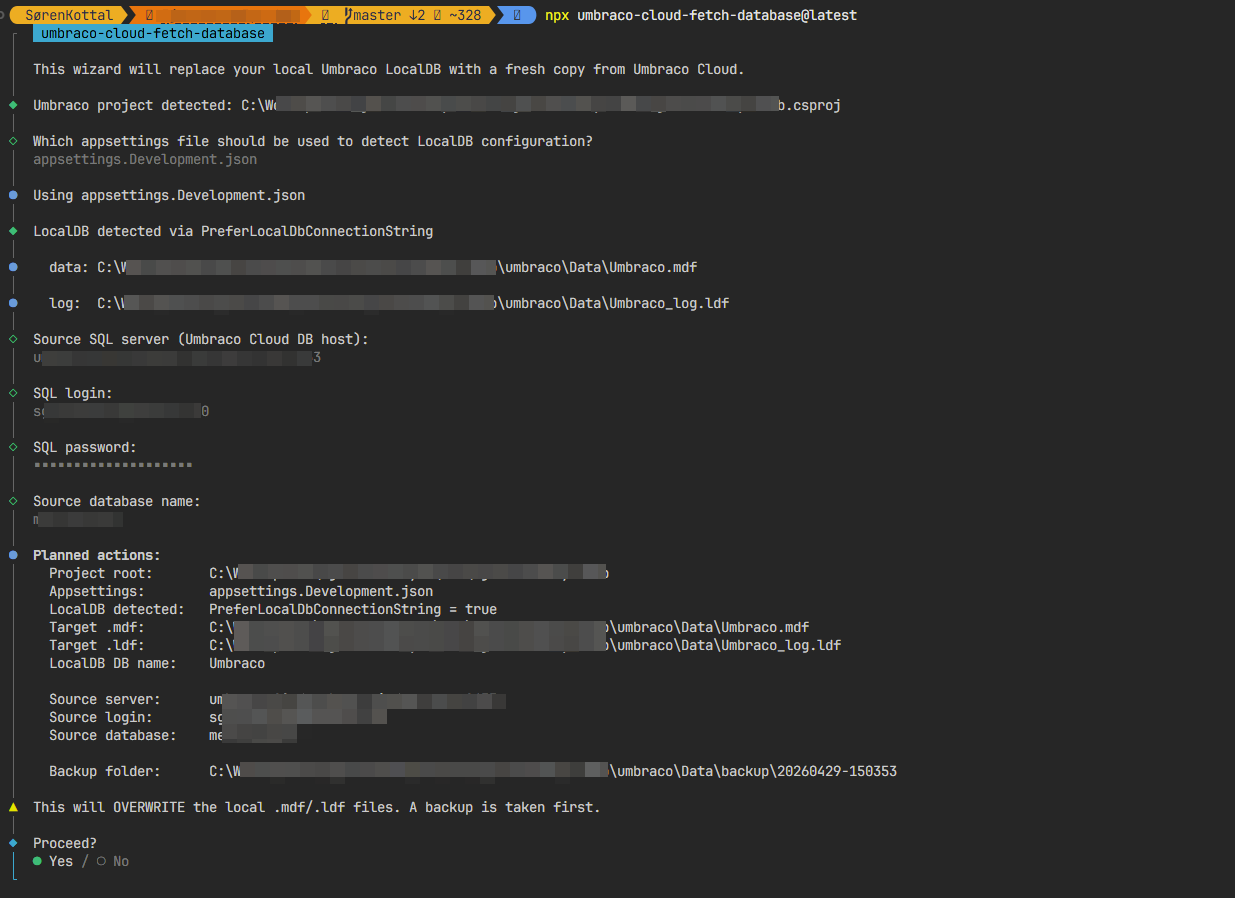
npx umbraco-cloud-fetch-database@latestThe wizard:
- Verifies you are inside an Umbraco web project.
- Lets you pick an
appsettings.*.jsonfile (defaults toappsettings.Development.json). - Detects how LocalDB is configured in that file (more on that below).
- Verifies the existing
.mdf/.ldffiles exist and are not locked. - Prompts for server / login / password / database of the source Cloud database.
- Shows a summary and asks for confirmation.
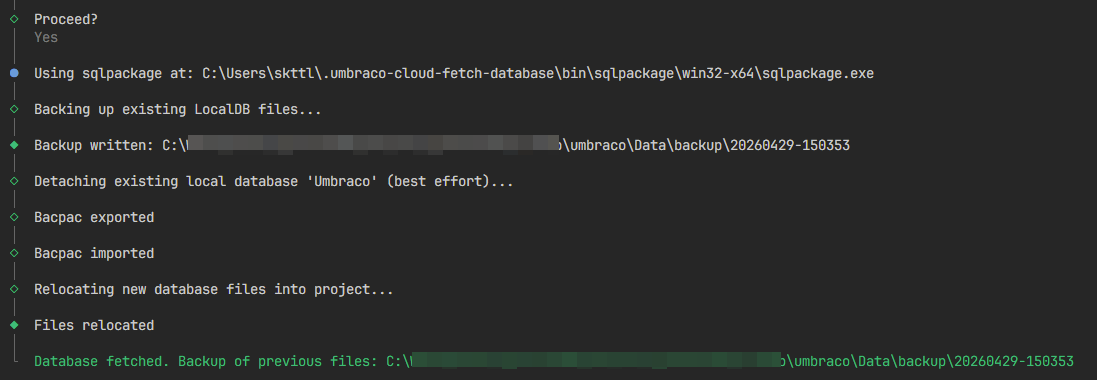
- Ensures
sqlpackageis on PATH, or offers to download it into a per-user cache. - Backs up the existing
.mdf/.ldfto<dataDir>/backup/<timestamp>/(keeping the 3 most recent). - Detaches the local database from
(LocalDB)\MSSQLLocalDB. - Exports a
.bacpacfrom the Cloud server withsqlpackage /Action:Export. - Imports the bacpac into LocalDB under a temporary name with
sqlpackage /Action:Import. - Detaches that temporary database and moves its
.mdf/.ldfinto the paths your project expects. - Cleans up the bacpac on success.
Umbraco re-attaches the database on next start because of AttachDbFileName.
The two LocalDB shapes it detects
The tool recognises both common ways an Umbraco ASP.NET Core project can be configured to use LocalDB.
The classic connection-string shape:
{
  "ConnectionStrings": {
    "umbracoDbDSN": "Server=(LocalDB)\\MSSQLLocalDB;AttachDbFileName=|DataDirectory|\\Umbraco.mdf;Integrated Security=True"
  }
}
And the Deploy-driven shape, which is what you get on a Cloud-style local setup:
{
  "Umbraco": {
    "Deploy": {
      "Settings": {
        "PreferLocalDbConnectionString": true
      }
    }
  }
}
In the second case the tool assumes the standard Cloud project layout with the database files at umbraco/Data/Umbraco.mdf (and matching .ldf).
Note: The Cloud SQL password is entered interactively at the prompt. It is never written to disk or to any config.
umbraco-cloud-fetch-media
Same story, different payload. Run it from the project root:
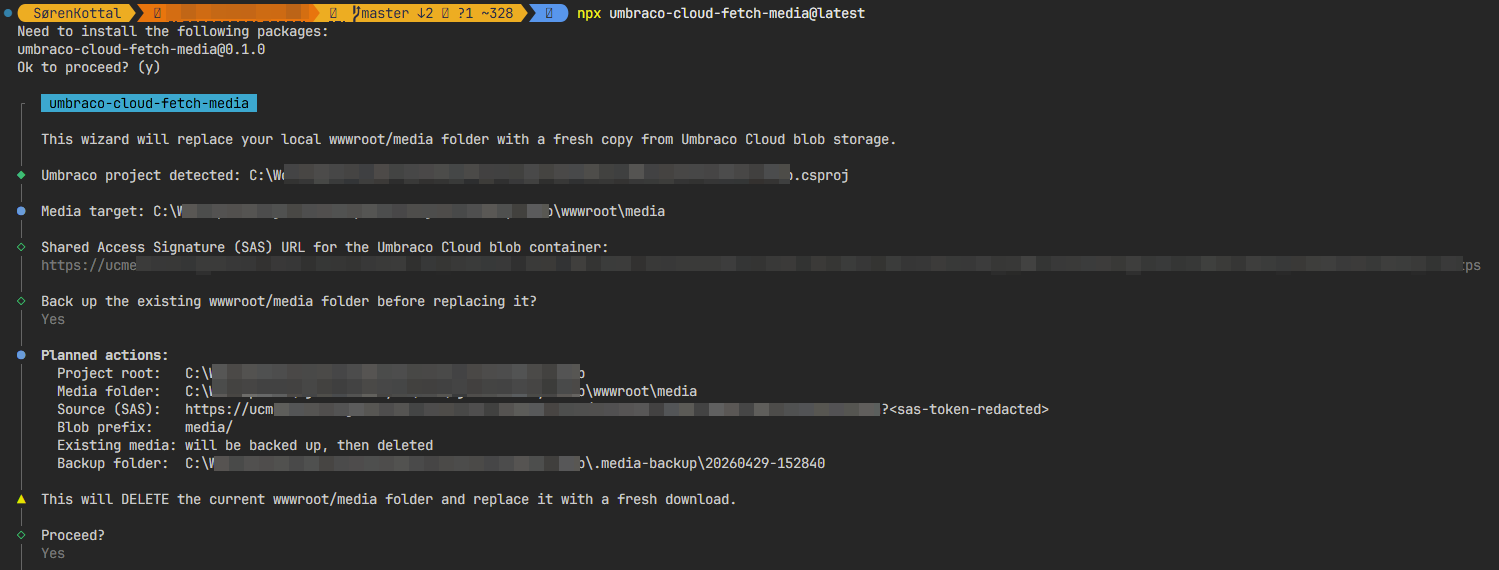
npx umbraco-cloud-fetch-media@latestThe wizard:
- Verifies the current directory is an Umbraco web project.
- Asks for the container-level SAS URL of the blob container (e.g.
https://<account>.blob.core.windows.net/<container>?sv=...). - If
wwwroot/mediaalready contains files, asks whether to back it up first. - Shows a summary and asks for confirmation.
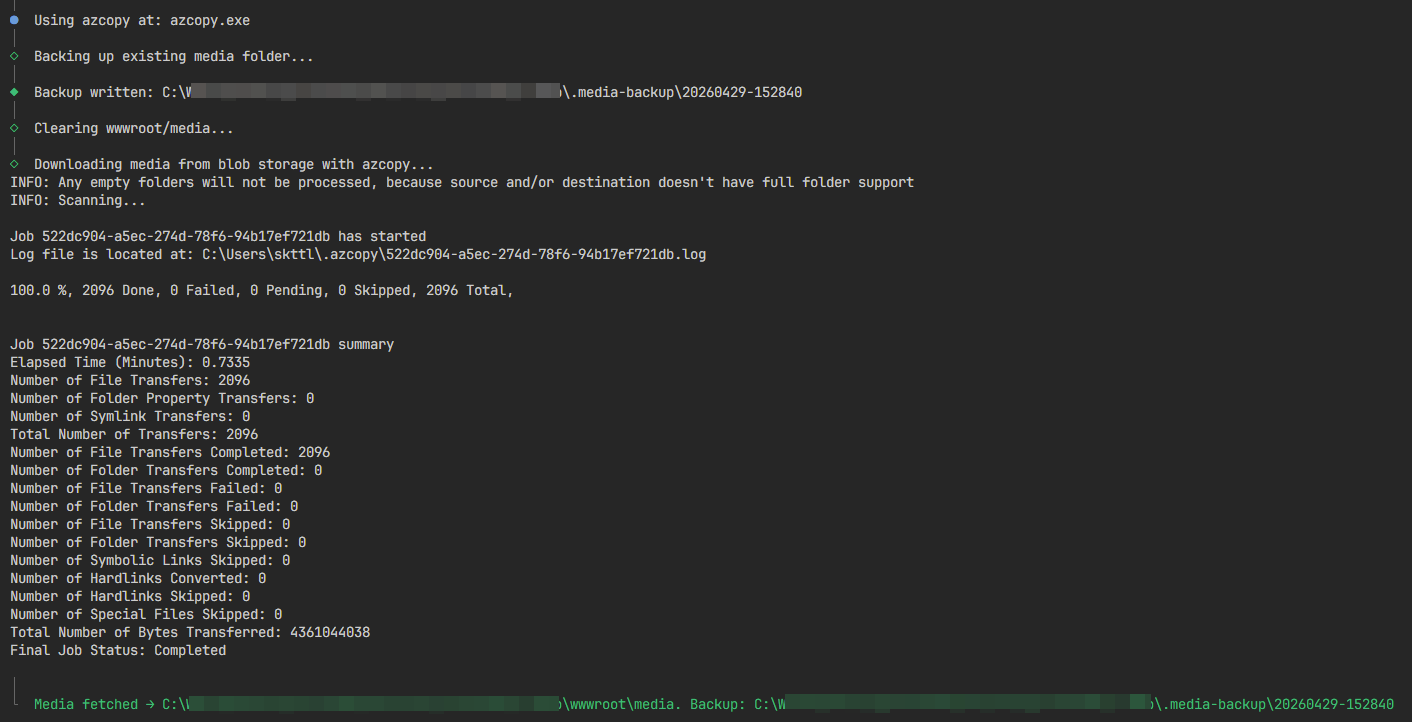
- Ensures
azcopyis available, or offers to download it into a per-user cache. - Optionally copies the current
wwwroot/mediato<project-root>/.media-backup/<timestamp>/(keeping the last 3 backups). - Deletes the existing
wwwroot/mediafolder and recreates it empty. - Runs
azcopy copy "<container>/media/*?<sas>" "<wwwroot/media>" --recursive=true.
The backup folder is .-prefixed and lives outside wwwroot, so the ASP.NET Core static file middleware will not serve it, and it is easy to add to .gitignore.
Finding the SAS URL
In the Umbraco Cloud portal: open your project → environment → Configuration → Connections → Blob Storage. You can copy the SAS url from there.
Pitfalls and gotchas
A few things to be aware of:
- Windows only. Both tools refuse to run elsewhere. LocalDB is a Windows feature, and the media tool currently follows suit.
- Run from the project root. Both tools expect to find a
*.csprojreferencingUmbraco.Cms*in the current directory. - Stop the site first. If Umbraco / IIS Express /
dotnet runis still running, the.mdfis locked and the swap will fail. Kill the site before running the database tool. - The DB files must already exist. The database tool replaces the existing
.mdf/.ldf. If you have just cloned the repo and never started the project, there is nothing to replace yet - run Umbraco once first so it creates the files. - Container-level SAS only. The media tool needs a SAS URL scoped to the container, not to a single blob. A blob-level SAS will not work.
- Whitelist your IP. Cloud SQL is firewalled. Add your current IP under the SQL server’s firewall settings on the Connections page in the Cloud portal, otherwise
sqlpackagewill sit there until it times out. - Backups rotate to the last 3. Both tools keep the three most recent backup folders and delete older ones. Treat them as a “let me undo the last refresh” safety net, not as long-term archives - that is what
umbraco-cloud-archiveris for. - Password is interactive, never stored. The SQL password is prompted for each run and is not persisted anywhere.
Outside Umbraco Cloud
Although these tools are built around Umbraco Cloud’s conventions, there is nothing Cloud-specific about the actual work they do. Any Umbraco ASP.NET Core project with a reachable SQL Server and an Azure blob container can be the source.
The catch is the detection logic: both tools sniff appsettings.*.json and the project layout assuming a Cloud-style setup. If your self-hosted project uses a different connection string shape, a different media path, or stores blobs somewhere else, the wizard may not recognise it. In that case you will probably get further by extending the tool than by working around it - PRs welcome.
Final thoughts
The archiver was the “this old project is being retired, save everything” tool. These two are the everyday-dev versions: one npx for the database, one npx for the media, and your local site is running on a fresh Cloud snapshot. Use Deploy as the primary way to sync content - but when you just need the bits on disk in a hurry, these are nice to have around.
Source, issues and PRs are on GitHub:
And if you want the whole-project archive flavour, that one lives over at skttl/umbraco-cloud-archiver. Feedback very welcome on all three.