Individual page icons in Umbraco
A customer wanted to distinguish pages of the same document type in the content tree. I thought that was a useful feature too, so I built NodeIcons. It lets editors choose an icon for an individual page, while keeping the document type’s original icon visible as a small sign beside it.
Same document type, different sections
I usually try to keep the number of document types down. If several pages have the same content requirements, I prefer to let them share a type.
Take a hotel website. It might have sections for stays, events and the restaurant. Those sections could all use a text page type, with more text pages underneath. Their subjects differ, but their content requirements do not necessarily justify separate document types.
That leaves the editor with a tree full of the same icon. A different icon for each section makes it easier to find the right part of the site, without adding document types just to get a different symbol in the tree.
Give individual pages their own icon
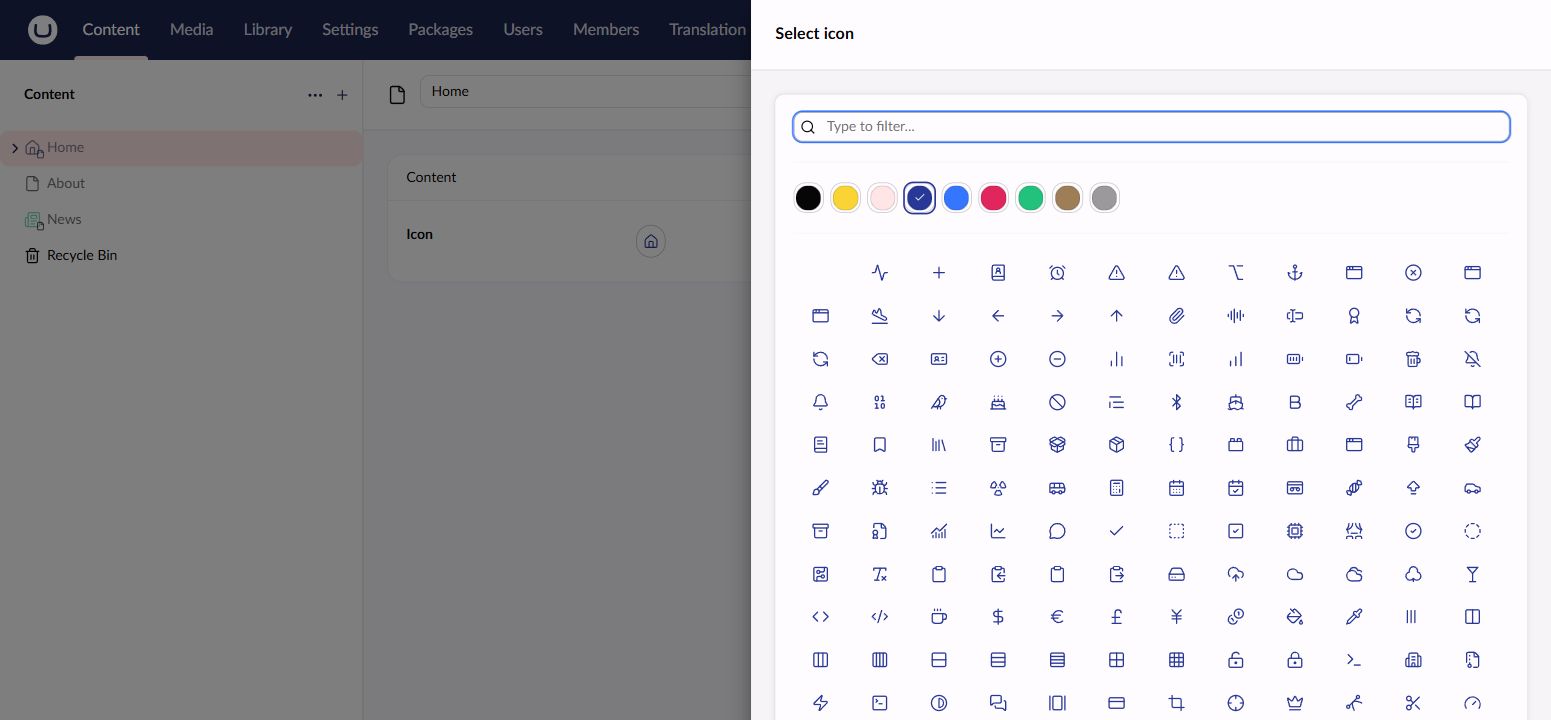
NodeIcons adds an icon picker that you can put on the document types where individual icons make sense. Editors choose a symbol and, optionally, a colour, then save the page. Saving a draft is enough to update the icon.
Pages without a selected icon keep their document type’s normal icon. You can use individual icons where they help and leave the rest alone.
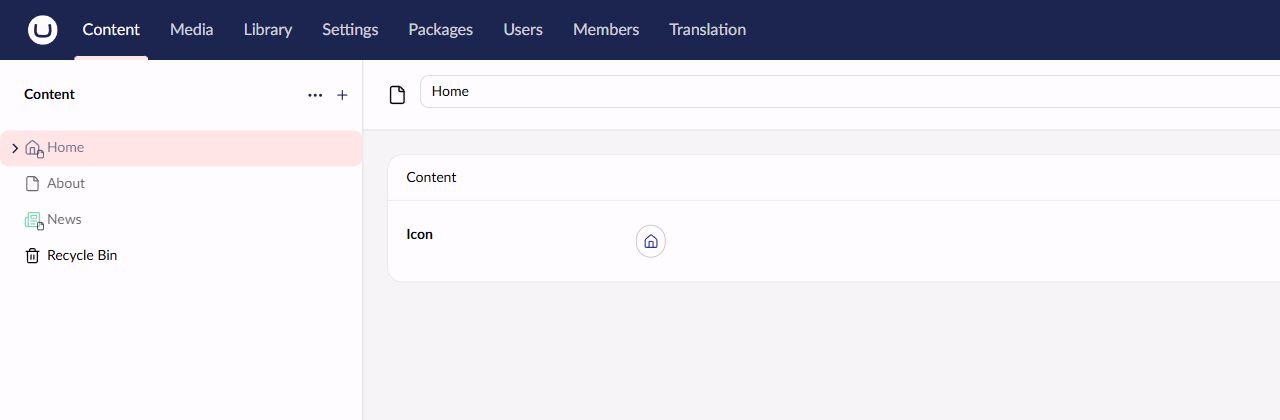
The package also changes the icons in native document picker trees. Selected document references show the chosen main icon, but do not show the small original-icon sign.
Keep the document type visible
An individual icon says something about the page, but I still think it is useful to see which document type it uses. NodeIcons keeps that information by showing the original icon as an entity sign. Hovering over the sign shows the document type’s name.
You could argue that this adds visual noise. I think it is a reasonable compromise: the main icon helps identify the page or section, and the smaller icon still signals its type. If you prefer to hide the original icon, set Umbraco:Community:NodeIcons:ShowOriginalIconAsSign to false in your configuration.
The idea of individual node icons is not new. Mark Drake’s Content Node Icons provided a similar feature for the older backoffice. Entity signs give this implementation a newer extension point that was not available when that package was created. Umbraco itself uses them for information such as unpublished changes, scheduled publishing and protection, as described in Umbraco’s overview of the newer backoffice.
Using entity signs was fairly straightforward. The part that needed a custom implementation was the icon itself. It has to follow the document type of each tree item, rather than use one fixed icon from the sign’s manifest.
The entity sign registration connects the sign to the package’s flag and loads my own element and API. These are the relevant fields from that manifest:
type: 'entitySign',
kind: 'icon',
alias: 'NodeIcons.EntitySign.OriginalIcon',
name: 'Original Document Type Icon',
forEntityTypes: ['document'],
forEntityFlags: ['NodeIcons.CustomIcon'],
element: () => import('./original-icon-sign'),
api: () => import('./original-icon-sign'),
The custom element observes the tree item and uses UmbDocumentTypeItemRepository to retrieve its document type’s icon and name. The server adds the flag when the selected symbol differs from the document type’s symbol. Changing only the colour does not add a sign.
Add NodeIcons to your site
NodeIcons has package versions for Umbraco 17 and 18. Choose the package version matching your Umbraco major version. Both use .NET 10.
For Umbraco 18:
dotnet add package Umbraco.Community.NodeIcons --version 18.0.1For Umbraco 17:
dotnet add package Umbraco.Community.NodeIcons --version 17.0.1Rebuild and restart the site, then configure the icon property:
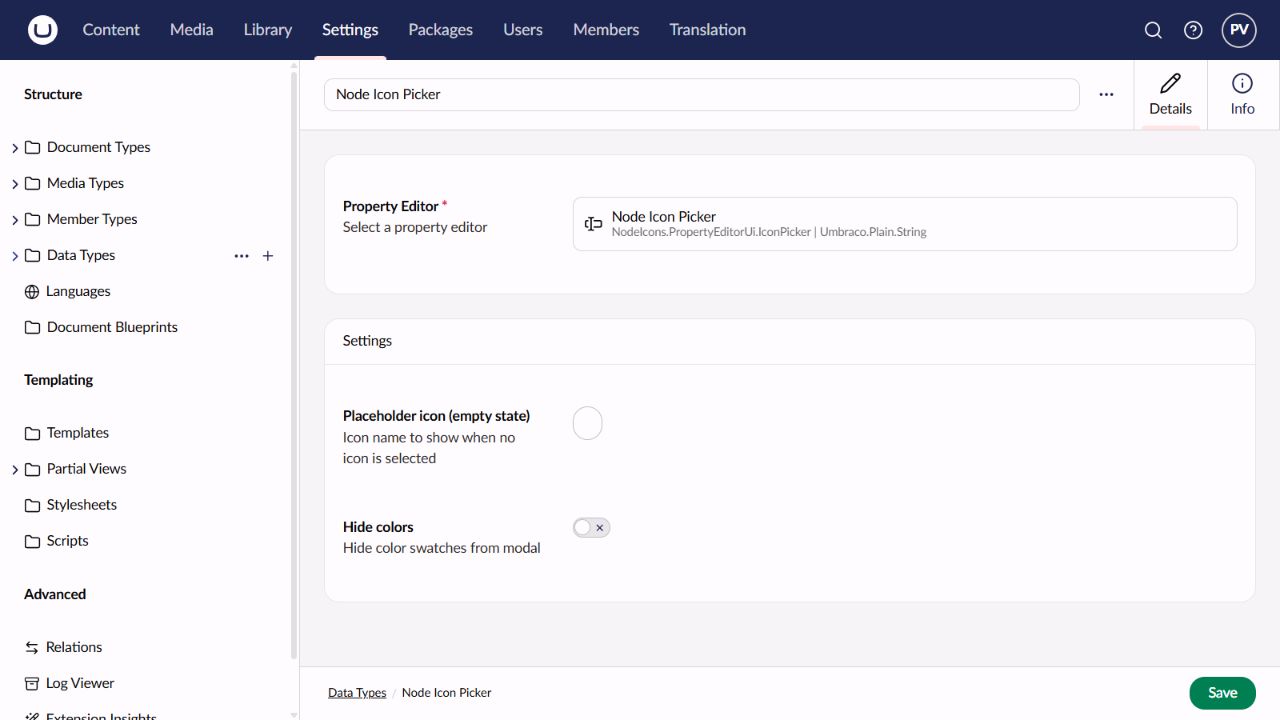
- In Settings, create a data type using Node Icon Picker.
- Add a property using that data type to the document types that need individual icons. Give it the alias
umbracoNodeIcon. - Keep the property invariant, including on multilingual document types. Culture-variant icon properties are ignored.
Open a page, choose an icon and optional colour, then save. The picker reuses Umbraco’s existing icon picker. These screenshots are from Umbraco 18; the available picker settings differ in Umbraco 17.
If you need a different property alias or want to hide the original-icon sign, the configuration guide covers both settings. The package leaves the stored document type icons unchanged.
You can find NodeIcons on Umbraco Marketplace and the source on GitHub.